How to Add an Interactive Map to Webflow
Interactive maps help Webflow website owners display business locations, service areas, or regional information in a clear and engaging way.

At Fla-shop.com, we offer 2 ways to add interactive maps to Webflow:
- Embedded Maps (widget) – hosted map widget using a short embed snippet
- JS/CSS HTML5 Maps – self-hosted JavaScript/CSS maps with full access to the source files.
In this guide, we’ll use a US interactive map as the main example, but the same steps apply to our other maps (World map with clickable countries, UK, Germany, France, etc.)
What you’ll learn
- The difference between Embedded Maps and JS/CSS HTML5 maps
- How to add a hosted interactive map widget to Webflow using the Code Embed element
- How to embed a self-hosted HTML5 map with external JS and CSS files
- How to troubleshoot the most common issues when embedding maps in Webflow
Requirements (Webflow side)
To embed custom code in Webflow, you need one of the following:
- A Core, Growth, Agency, or Freelancer Workspace, or
- A site with an active Site plan
Only then you can use the Code Embed element to add custom HTML/JS.
On the free Starter setup without a paid plan, the Code Embed element isn’t available, so you won’t be able to add the map code.
Which Fla-shop product should I use in Webflow?
There are two main ways to use Fla-shop maps in Webflow. The short comparison below will help you choose the best option for your project.
| Option | Best for | Pros | Things to know |
|---|---|---|---|
| Embedded Maps (widget) | Non-technical users, quick setup, agencies working with many clients | No file uploads, visual online editor, all maps hosted for you, automatic updates | Requires online account and subscription for permanent embedding; works via iframe |
| JS/CSS HTML5 Map | Developers comfortable with hosting JS/CSS and editing HTML | Full control over assets, can integrate with your build or CDN, no external SaaS dependency | You must host files yourself and keep URLs correct; setup is more technical |
If you are not sure which option to choose, start with Embedded Maps for the fastest setup and easiest maintenance.
Product 1 — Embedded Maps (Widget)
Best when you want the simplest setup with no file hosting.
Embedded Maps are hosted widgets that stay up to date, scale automatically with the layout, and work smoothly across modern browsers and mobile devices.
Step 1 — Create and customize your map
-
Create a free account or sign in
- Open the online map editor and sign up or log in to your Fla-shop account.
-
Choose the US map (or another map)
- Click “Choose a map” and select United States.
- You can also pick World, Europe, or many other country and region maps from the catalog.
-
Customize your map in the visual editor
Use the tabs in the editor:
- Colors – set main and hover colors; click states to fill them.
- Links & Tooltips – add links, text content, or rich tooltips for each state.
- Markers – place pins/points on the map with labels and optional links/tooltips.
- Preview – switch between Tooltip mode and Side panel mode to see how the content appears.

-
Save your work
- Click Save so the map is stored in your account.
Step 2 — Publish your map and get the embed code
- Go to your Embedded Maps dashboard.
- Find your US map in the list.
-
Open its basic settings (gear icon):
- Choose display mode:
- Side panel – content appears in a panel to the right of the map;
- Tooltip – content appears in hover/click popups over the map.
- Choose display mode:
- Turn on Publish for this map and enable Embedding.
- Click Embed code and copy the snippet to your clipboard.
On a free plan, you can trial-publish a map and test embedding it on your site.

Step 3 — Add the embed code in Webflow
Now we’ll paste the code into Webflow using the Code Embed element.
- Open your Webflow project in the Designer.
- Choose the page and section where you want to place the map (e.g., a Sales Reps section).
- Open the Add panel and drag a Code Embed element onto the canvas.
- Double-click the Embed element (or click the gear icon) to open the code editor.
- Paste the embed snippet you copied from your Fla-shop account.
- Click Save & Close in the code editor.
- Use Webflow’s layout tools to stretch the Embed element to the desired width (full width usually works best).
- Click Publish in the Webflow Designer so the map appears on your live site (custom code only takes effect on published pages).
That’s it — your interactive US map should now appear on the published Webflow page.
Because Embedded Maps are loaded as widgets (iframes), links in the map typically open in a new browser tab. This behavior is common across website builders to keep embedded content isolated.
Ready-to-use embed snippet for a test map
To quickly test how Fla-shop Embedded Maps work in Webflow, you can use the following ready-to-use code snippet:
<iframe src="https://app.fla-shop.com/vcg/30de2c86-2988-4a92-9abd-bbdcbea9fcf5" width="100%" frameborder="0" scrolling="no" data-w="530" data-h="410" class="fla-shop-embedded-map"></iframe><script type="module" src="https://app.fla-shop.com/static/fla-shop-embed.js"></script>
Later, you can replace this test snippet with the embed code for your own map taken directly from your Fla-shop account.
Step 4 — Update and manage your map
You don’t need to touch Webflow again to change the contents of the map.
- To change colors, tooltips, or markers, just edit the map in the Fla-shop editor and Save.
- If needed, republish the map in your dashboard.
- The embedded widget loads settings from the server, so all Webflow pages that use this map are updated automatically.
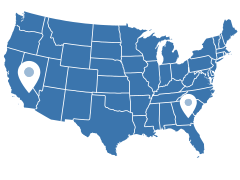
Product 2 — JS/CSS HTML5 Map (self-hosted)
Best when you’re comfortable with HTML, JavaScript, and hosting static files, and you want full control over assets.
With this option, you get a ZIP package for a map (for example, the HTML5 US map) and host the files on your own server or CDN.
Step 1 — Prepare the JS/CSS map files
-
Obtain the HTML5 map package
- Purchase or download a demo of the HTML5 US map (or another map) from Fla-shop.com.
-
Unzip the package and locate the core files (names may vary slightly depending on the product):
map.js– core map logicraphael.min.js– Raphaël SVG librarysettings.js– configuration and map settingspaths.js– paths/geometry and labels for regions (for some map types)map.css– styles for the map
-
Upload files to public hosting
- Upload all required files to a publicly accessible HTTPS location (your own server, static hosting, or CDN).
- Make sure each file has a direct URL (opening it in the browser should download or display the file).
Step 2 — Insert the HTML5 map code in Webflow
- In Webflow Designer, drag a Code Embed element into your layout.
- Open the code editor for the Embed element.
-
Paste the following snippet, replacing
https://your-host.example.com/...with your actual file URLs:<!-- start Fla-shop.com HTML5 Map --> <div id="us-map-container"></div> <link href="https://your-host.example.com/map.css" rel="stylesheet"> <script src="https://your-host.example.com/raphael.min.js"></script> <script src="https://your-host.example.com/settings.js"></script> <script src="https://your-host.example.com/paths.js"></script> <script src="https://your-host.example.com/map.js"></script> <script> var map = new FlaMap(map_cfg); map.drawOnDomReady('us-map-container'); </script> <!-- end HTML5 Map --> - Save the Embed code and publish your Webflow site so the map appears on the live page.
You can edit the settings.js file manually in a code editor or use the Fla-shop online editor for your map and then export the updated settings back into your HTML5 map package.
Step 3 — Troubleshooting (JS/CSS)
If the map doesn’t appear or you see a blank space:
-
Check the browser Console
- Open the page in a browser, press F12 → Console and look for errors such as:
404or403— incorrect file path or no public access.FlaMap is not defined—map.jsdidn’t load.map_cfg is not defined—settings.js(orpaths.js, depending on the map) didn’t load.
-
Verify all URLs
- Make sure every
<script>and<link>URL is correct and case-sensitive (map.jsis not the same asMap.js).
- Make sure every
-
Ensure HTTPS
- Mixing
http://assets on anhttps://site may cause the browser to block the map scripts.
- Mixing
FAQ
Can I use these steps for other maps, not just the US map?
Yes. The process is the same for World, Europe, country, and region maps. In the Embedded Maps editor you simply choose a different map template, and for JS/CSS HTML5 maps you use the corresponding package for the map you need.
Will the map be responsive on mobile?
Yes. Both Embedded Maps and JS/CSS HTML5 maps are SVG-based and scale to the width of their container, so they adapt to different screen sizes and work on modern mobile and desktop browsers.
Can I use one map on multiple Webflow pages or projects?
Yes. For Embedded Maps, you can paste the same embed snippet on any page or project where you want the map to appear. For JS/CSS HTML5 maps, you can reuse the same hosted files and initialization snippet, subject to your license terms.
Can I show detailed content next to the map (for example, distributor or office info)?
Yes. In Embedded Maps you can switch to side panel mode so that detailed content appears in a panel next to the map when a region or marker is clicked, which works well for distributor lists, sales territories, or office directories.
For JS/CSS HTML5 maps, there is no built-in option to display content in a separate block next to the map. This behavior can be added with custom coding – for example, by listening to map events in JavaScript and updating a content area beside the map, similar to the approach described in our “display content next to the map” tutorial.