Embedded Maps: Examples and Step-by-Step Guide
Embedded Maps is a hosted interactive map widget that lets you create clickable maps and add them to your website with a simple embed code. You can choose a map, customize its colors and content in a visual editor, publish it, and then paste the installation code into your website without hosting the map files yourself.
This guide shows the complete workflow, from choosing a map to testing the embedded version on your website. First, take a look at a working example.
Live Example: Interactive USA Map
Below is an interactive map of the United States. Click a state to see its information in the side panel.
The same type of interactive map can be embedded on your own website, where visitors can select regions, view information, follow links, and interact with the content you have added.
Is Embedded Maps Right for Your Website?
Embedded Maps is a good fit if your website or site builder supports an Embed or Custom HTML block. Because the service hosts the map for you, you do not need to upload or maintain JavaScript and CSS files yourself. You can manage the map through the visual editor and update it later without replacing the embed code on your website.
In some cases, another Fla-shop map product may be a better choice. If your site runs on WordPress and you prefer native plugin integration, consider a WordPress map plugin. If you want to host the map files yourself, a JS/CSS map may be more suitable.
Embedded Maps works through an iframe. If iframe-specific behavior is unsuitable for your project — for example, if links inside the map must open in the same browser tab — consider the WordPress or self-hosted JS/CSS alternatives instead.
In short, Embedded Maps works with websites and site builders that support HTML embed code.
How Embedded Maps Works
Create a map → customize it → publish → embed it on your website.
Step 1 — Choose and Create Your Map
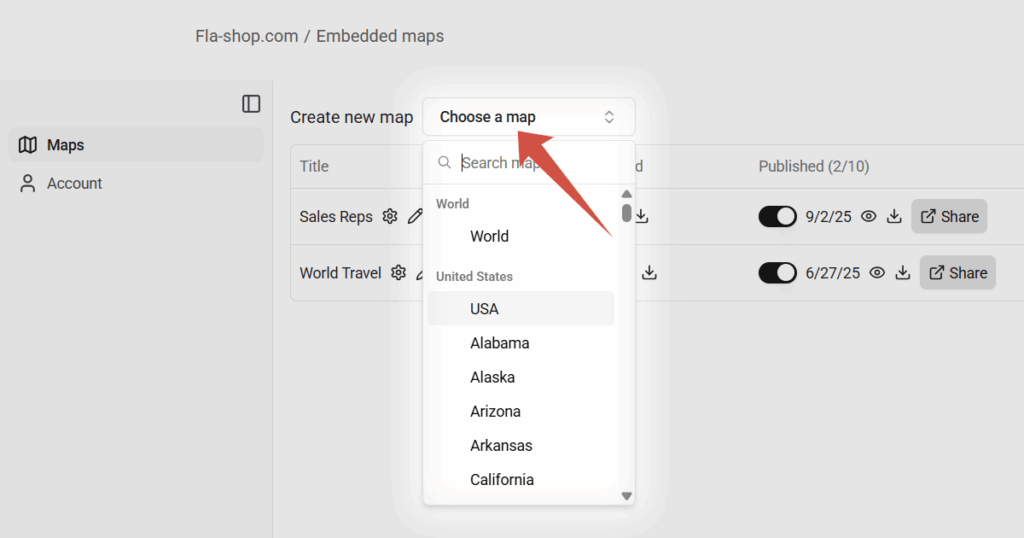
Start in your Embedded Maps account and choose the map you want to create.
The map library includes the USA, the World, individual countries, U.S. states with counties, and other available regional maps. Select the map that fits your project and create it in your account.
Step 2 — Customize the Map
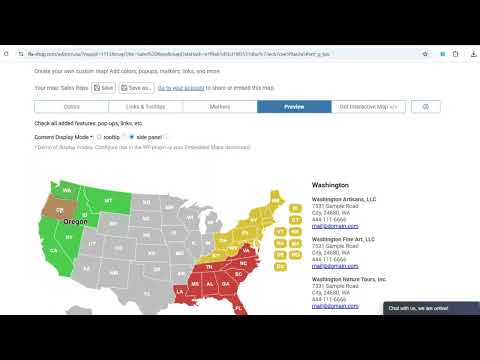
The visual editor contains the main tools you need to change the appearance of the map and add interactive content.
- Colors — Set Main and Hover colors, then click individual regions to apply your selected colors. Different regions can use different colors.
- Links & Tooltips — Select a region and add content, links, and other contextual information that visitors can access from the map.
- Markers — Add and position markers on the map. Markers can include labels, links, colors, icons, and tooltip content.
- Preview — Check how visitors will interact with your finished map before publishing it.
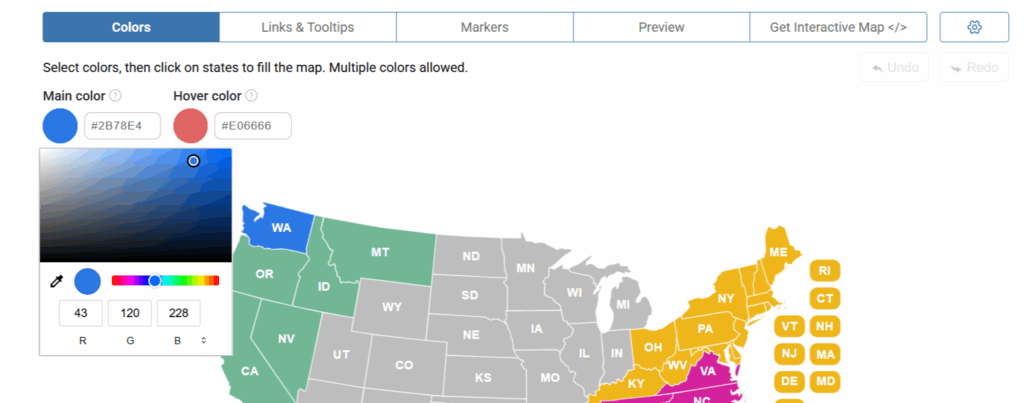
You can experiment with the USA map editor before creating an account.
👉 Try the Map Editor — no sign-up required.
Step 3 — Choose How Map Content Appears
Embedded Maps provides two ways to display the information you add to regions and markers.
Tooltips work well for shorter information that visitors can view directly while interacting with the map.
Side Panel / Modal Box is better for longer or more structured content, such as contact details, office information, lists, or descriptions.
You can choose the Content Display Mode in the map’s Basic settings.
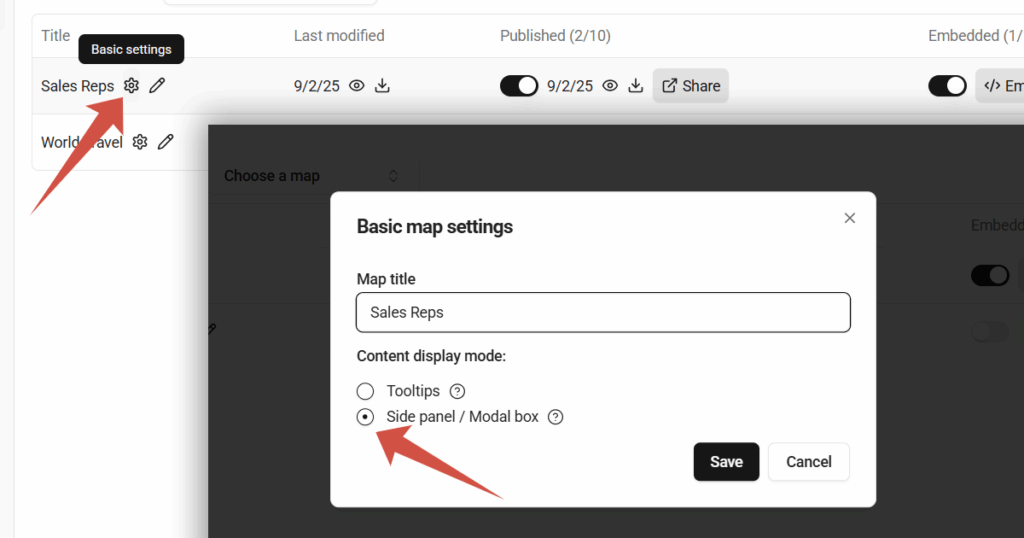
When Side Panel / Modal Box is selected, the display automatically adapts to the available width. If the map block is wider than 992 pixels, the content appears in a side panel next to the map. At narrower widths, the same content opens in a modal box over the map.
This makes it possible to use detailed content while keeping the map practical on smaller screens.
Example: Map with Modal Content
The example below demonstrates how the same type of map content can appear in a modal when a side-by-side layout is not appropriate.
Step 4 — Publish, Embed, and Test Your Map
When the map is ready, return to your account and publish it. Enable embedding for the map, then click Embed code to open the Installation code window.
The window contains the HTML code required to display your map on a website. Copy the code to the clipboard.
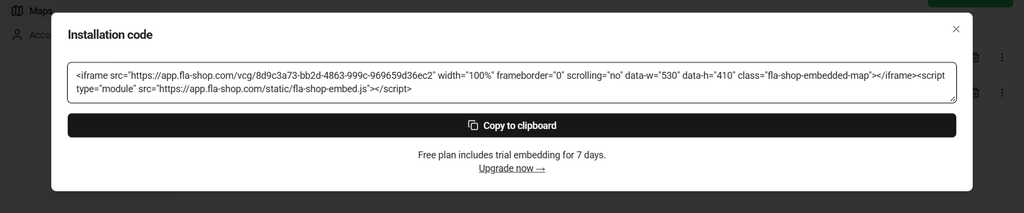
Next, open the page where you want the map to appear. Add an Embed, Custom HTML, or equivalent code block provided by your website builder and paste the installation code into it.
After embedding the map, preview the page on both desktop and mobile. Click several regions and markers to confirm that the correct content appears and that your links behave as expected.
If you later change colors, content, links, or markers, edit the map and republish it. Then check the website again to confirm that the embedded version has updated. You do not need to replace the embed code each time you update the map.
Common Ways to Use Embedded Maps
Sales Territories and Directories
Color regions by sales territory, service area, or responsibility and let visitors click a region to find the appropriate representative, distributor, office, or partner. Detailed contact information can be displayed in the side panel or modal box.
Locations, Events, and Travel
Use regions and markers to present locations, venues, destinations, routes, or other local information. Visitors can interact with the map to find additional details or follow links to relevant pages.
Data, Education, and Storytelling
Interactive maps can help present regional statistics, programs, research, educational information, and editorial content. Tooltips can provide quick context, while the side panel or modal mode can hold more detailed information.
Plans and Trial
You can create a free Embedded Maps account and use it to create and edit maps. The Free plan also includes trial embedding so you can test a map on your own website.
Paid plans provide ongoing website embedding. Plan limits depend primarily on the number of maps you need to embed, so you can choose the level that matches your project and upgrade if your requirements grow.
For current prices and map quotas, see the Embedded Maps pricing page.
Platform-Specific Embedding Guides
Once your map is ready, use the guide for your website builder to see exactly where to paste the embed code.
- How to Embed Interactive Maps in WIX
- How to Add an Interactive Map to Webflow
- How to Add an Interactive Map to Squarespace
- How to Embed a Map Widget in GoDaddy Website Builder
- How to Embed Interactive Maps in Weebly and Square Online
These guides focus on the website-builder side of the process, while this overview covers creating, configuring, and publishing the map itself.
FAQ
Can I embed the same map on multiple websites?
Yes. Embedded Maps plans are based on the number of maps you embed rather than the number of pages or domains where the same map appears. This means the same published map can be used in more than one location without creating a separate copy for every website or page.
Can links inside the map open in the same tab?
Embedded Maps are displayed through an iframe. In many website builders, links from embedded iframe content open in a new browser tab or window because of the way embedded content is isolated.
If opening map links in the same tab is important for your project, consider a Fla-shop WordPress plugin or a self-hosted JS/CSS map instead. These alternatives do not rely on the same iframe-based embedding approach and provide more control over link behavior.
Ready to Create Your Interactive Map?
Want to experiment before registering? Try the Map Editor and customize a USA map directly in your browser.
Ready to save your map and test it on your website? Create a Free Account.
You can also View Pricing Plans when you are ready to choose a plan for ongoing embedding.